
How to Compete in Grid Leagues

Introduction
How to Compete in Grid Leagues Origami Tech runs trading competitions with prize pools reaching up to $5,000 per contest. These aren’t PnL-based, so no matter how your trades perform, you earn a cut of the prize pool proportional to the volume you generate.
What are these trading competitions?
They’re volume-based. Instead of ranking traders by profit:
- Participants trade a specific market
- Executed volume is tracked
- Rewards are distributed proportionally to volume contributed
In other words your PnL doesn’t matter. Your volume does.So whether a strategy is profitable in the short term is basically irrelevant, what matters is consistent execution.Here’s how to start earning with Grid Leagues in under 10 minutes.
Step 1: Choose your Grid League
On Origami Tech, you’ll find a variety of live trading competitions featuring different projects and highly attractive prize pools.Choose a competition based on:
- Prize pool
- Traded pair
- Exchange
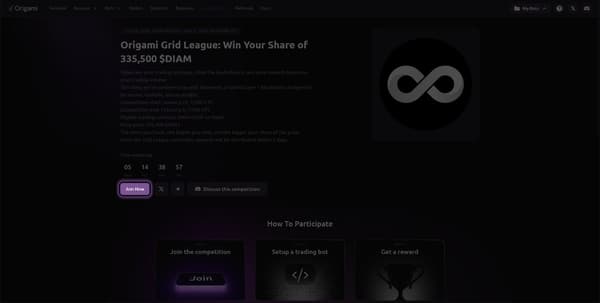
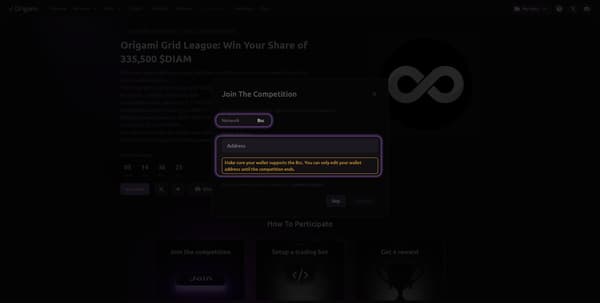
Once you’ve picked one, click on Join Now and enter your wallet address
Make sure you put the correct wallet, pay special attention to the chain required. This can be different from one competition to another.
Once you've joined, it's time to connect your exchange account to Origami Tech.
You can keep up with all active Grid Leagues by following @origamitech_ or joining our Telegram and Discord.
To illustrate the process, we'll use the Diamante Grid League as an example.
On the competition page, you’ll see which exchange it runs on. Once you know the exchange, you can start connecting your account.
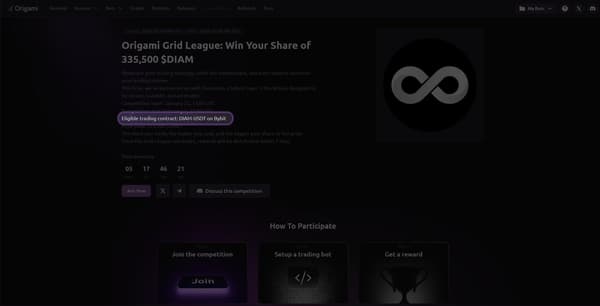
Step 2: Connect your Bybit account
From the top menu, head to Account and click Add Account.
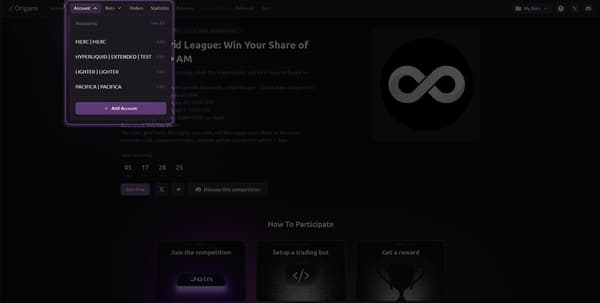
Select Bybit from the list (the exchange we identified on the competition page). We’ll guide you through the full process, but you can also find instructions on the right side of the Account page or in our docs.
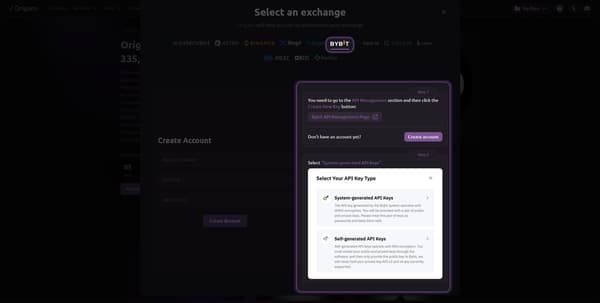
Next, you’ll create an API key and connect it to Origami Tech.
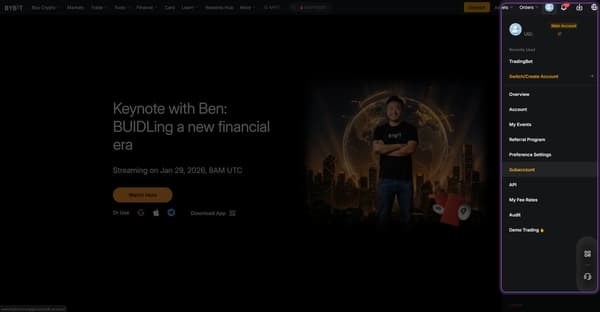
Open Bybit, hover over your profile icon, and click Subaccount.
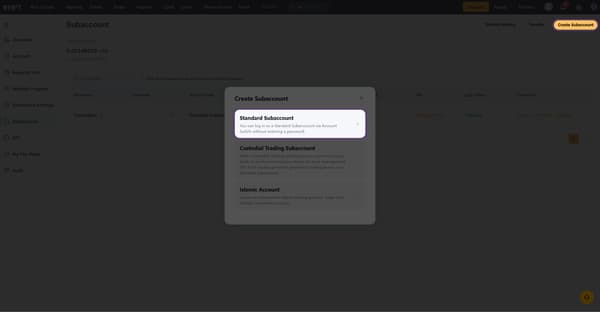
Click Create Subaccount → Standard Subaccount.
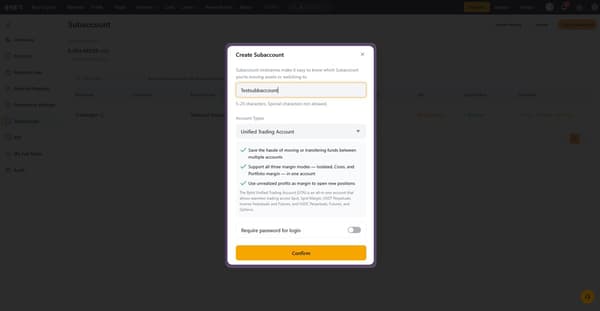
Give your subaccount a unique name and make sure Unified Trading Account is selected.
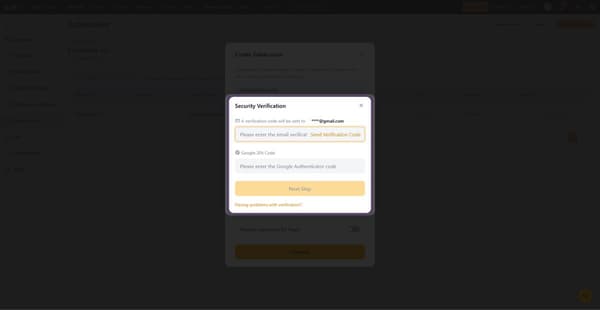
Click Confirm, then complete the 2FA procedure.
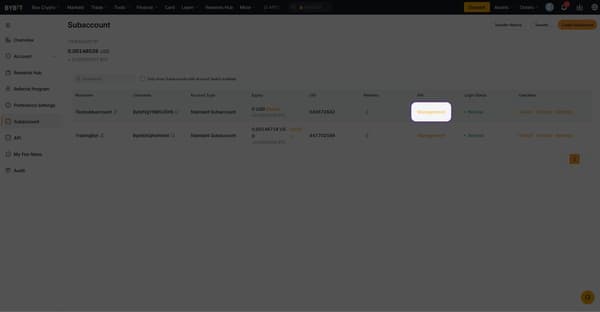
Now create an API key for the subaccount you just created:
Go to Management → Create New Key
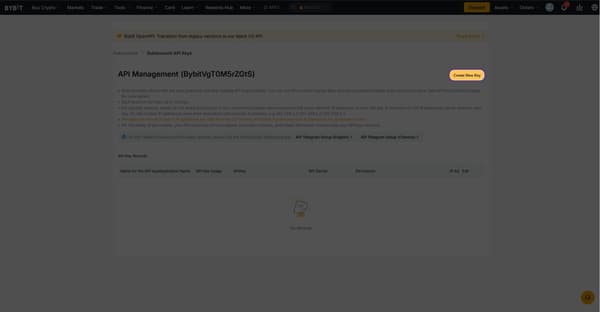
Select System-generated API Keys.
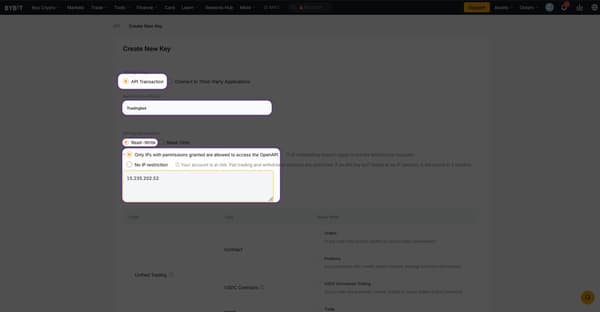
Choose the following settings:
- API transaction
- Give your API a name
- Enable Only IPs with permissions granted are allowed to access the OpenAPI, then paste this IP into the field: 15.235.202.52
- Check all available permission boxes
Click Submit, enter your 2FA, and confirm.
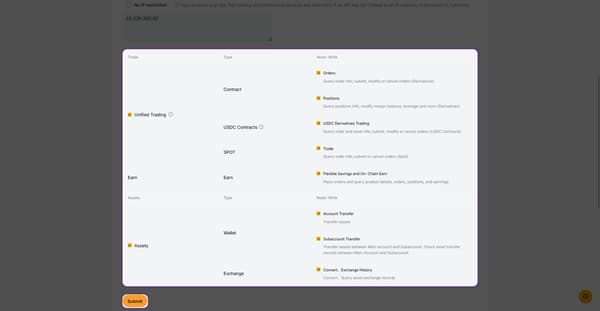
The next screen will show two keys:
- API key
- Secret key
Don’t close this dialog until you’ve copied both keys into Origami Tech.
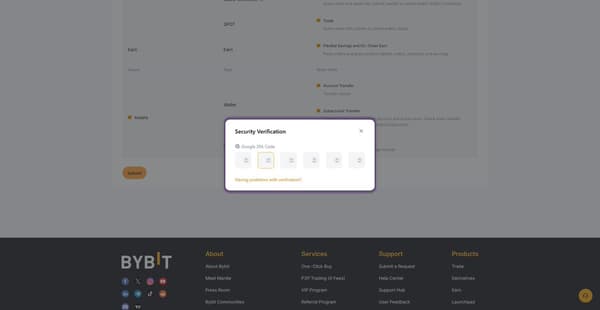
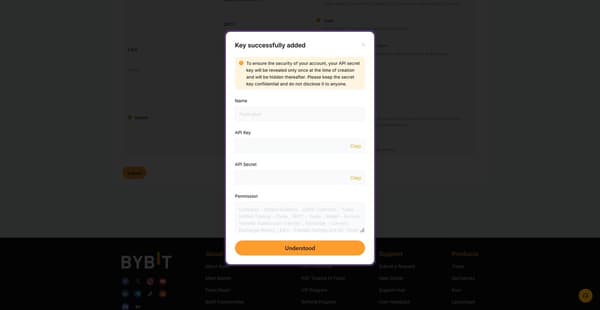
Back on Origami Tech, give your account a name, paste your API Key into the API Key field, then paste your Secret Key into the Secret Key field.
Once you’re done, click Create Account.
Step 3: Create and deploy a bot
Click Bots in the top menu, then open Custom Bots. On this page, you can view all bots you’ve created. Click Add Bot.
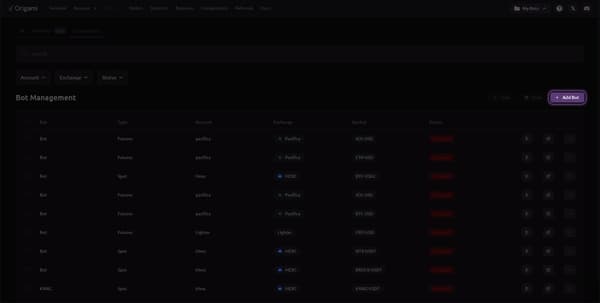
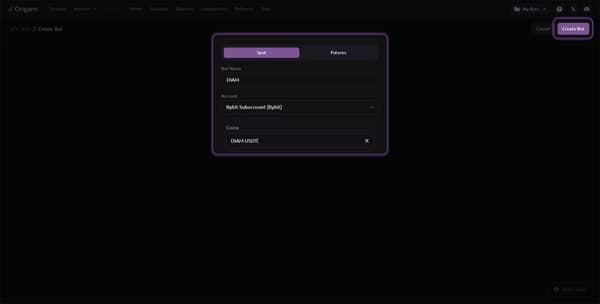
Give your bot a name, select the account you just created, then choose the pair listed on the competition page. In our case, that’s DIAM-USDT.
Click Create Bot.
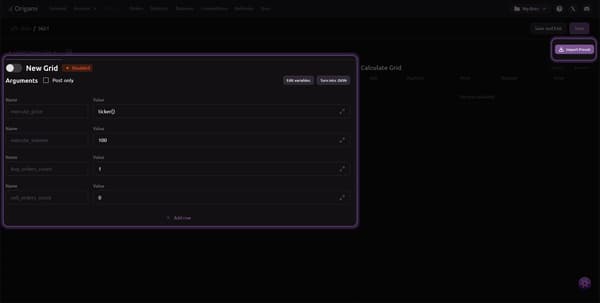
Here, you can build your own strategy from scratch (using fields or JSON). For this guide, we’ll use a preset designed to farm volume and maximize your share of the prize pool.
Click Import Preset (top right).
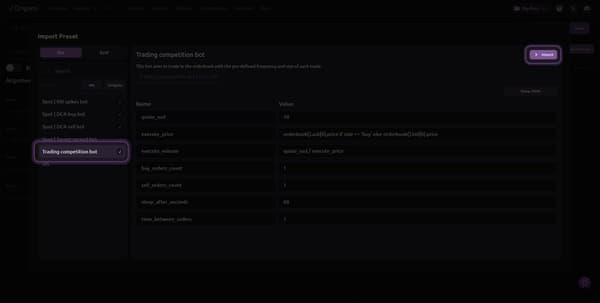
You’ll see multiple presets available. Select the volume-farming preset titled "Trading competition bot," then click Import.
Now click Research to make sure there are no errors.
If you see an Insufficient Balance error, you’ll need to deposit funds into your subaccount (not your main account).
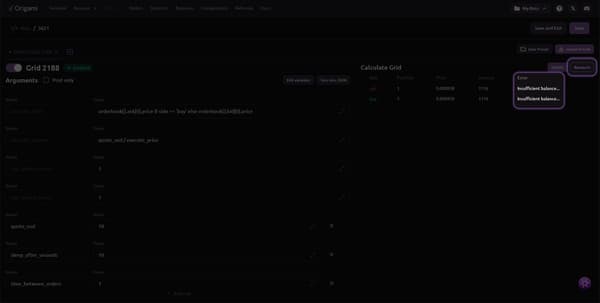
Once the base asset (in this case $DIAM) is in your subaccount wallet, the error should disappear.
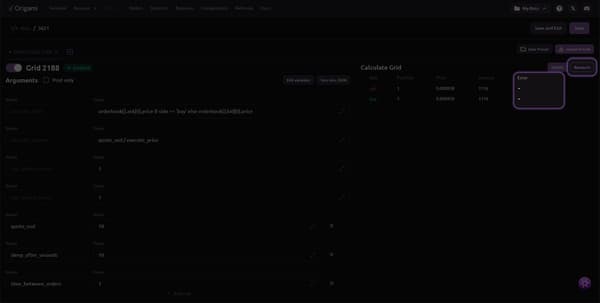
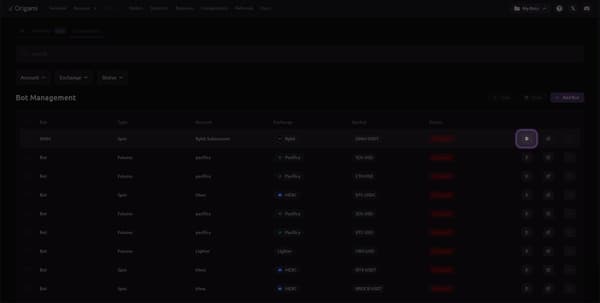
Click Save and Exit. To deploy your bot, all that’s left is to click the Start button.
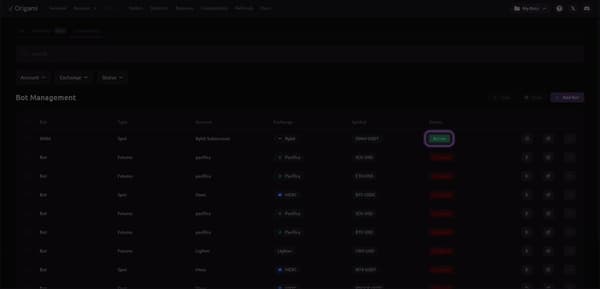
Once it’s live, your bot status should look like this.
You’re all set. Keep the bot running, track your volume, and claim your cut when the competition ends.
You may also like


.jpeg)

.jpeg)





Trade Smarter with Origami Tech
Take your crypto trading to the next level with our powerful automated trading terminal. Maximize profits, minimize risks, and stay ahead of the market 24/7.